Welcome to Zarna AI! This guide will walk you through creating your account and getting started with our platform. The entire process takes less than 5 minutes.
Step 1: Navigate to Sign Up
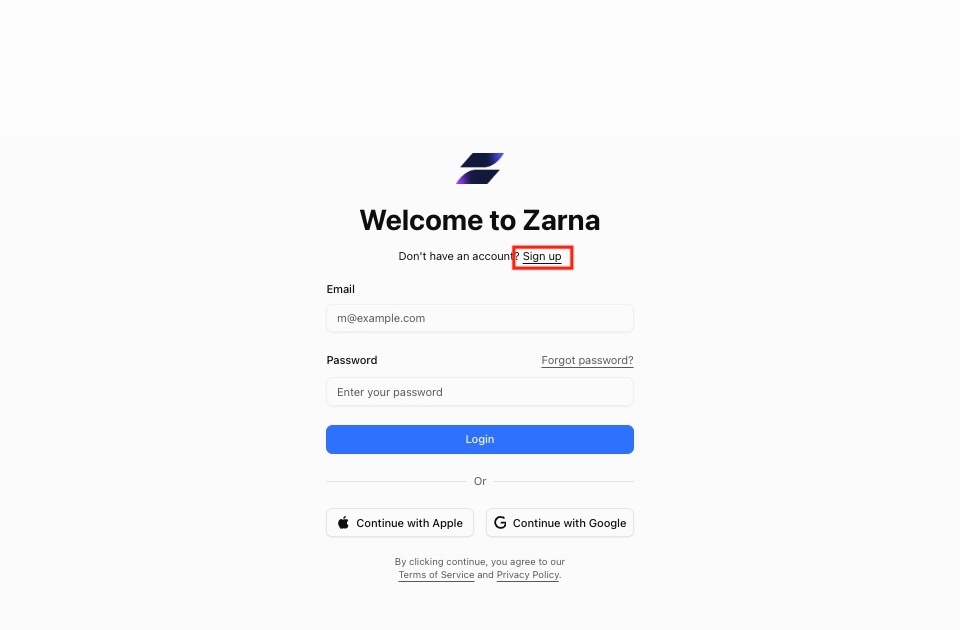
Start by visiting the Zarna AI login page. If you don't have an account yet, click on the "Sign up" link (highlighted in red below) located beneath the welcome message.
Step 2: Fill Out the Registration Form
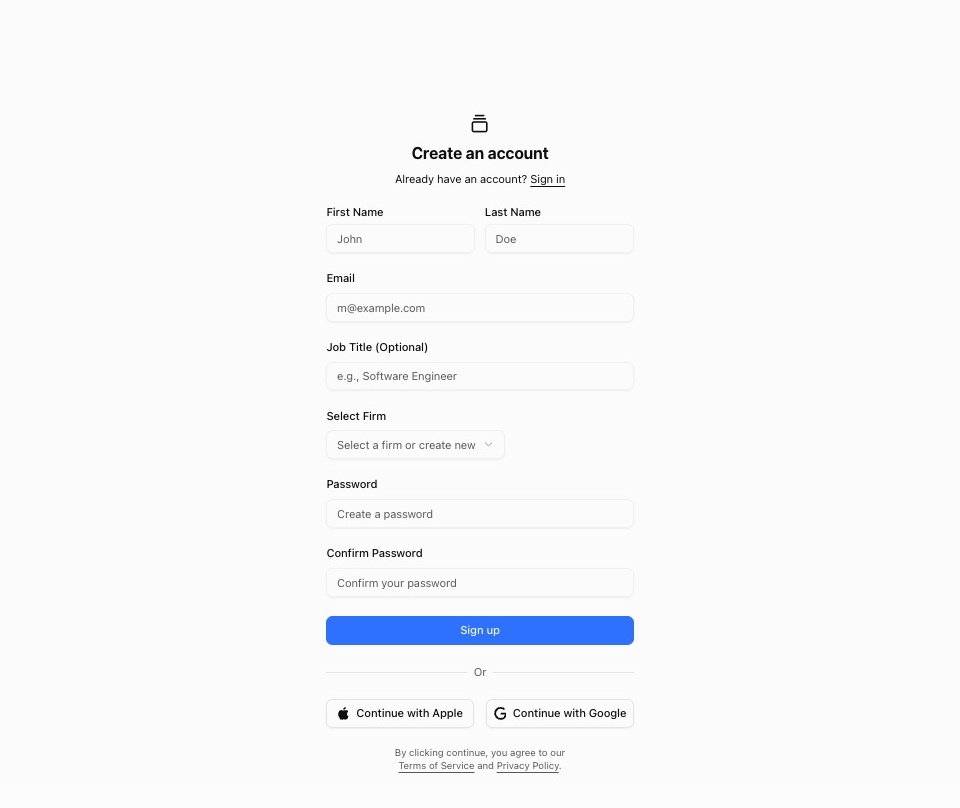
Navigate to the Zarna AI sign-up page. You'll see a registration form where you need to provide:
- First Name & Last Name: Enter your full name
- Email: Use your work email address
- Job Title (Optional): Add your role (e.g., Software Engineer, Analyst)
- Select Firm: Choose your firm from the dropdown or create a new one
- Password: Create a secure password
- Confirm Password: Re-enter your password
You can also sign up quickly using your Apple or Google account.
Step 3: Submit and Check for Confirmation
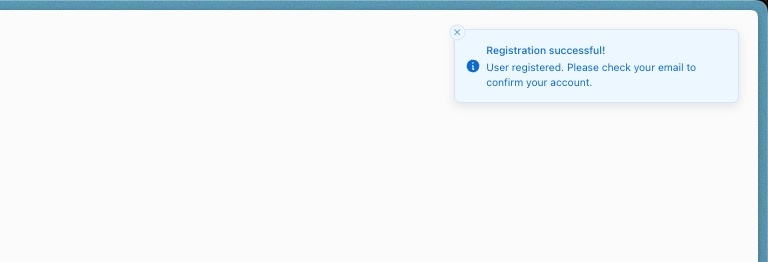
After clicking the "Sign up" button, you'll be redirected to the sign-in page. Look for a success notification at the top right of the screen that says "Registration successful! User registered. Please check your email to confirm your account."
Step 4: Verify Your Email
Check your email inbox for a verification message from Supabase Auth (Zarna's authentication service). The email will have the subject "Confirm Your Signup". Open the email and click on the "Confirm your mail" link to verify your email address.
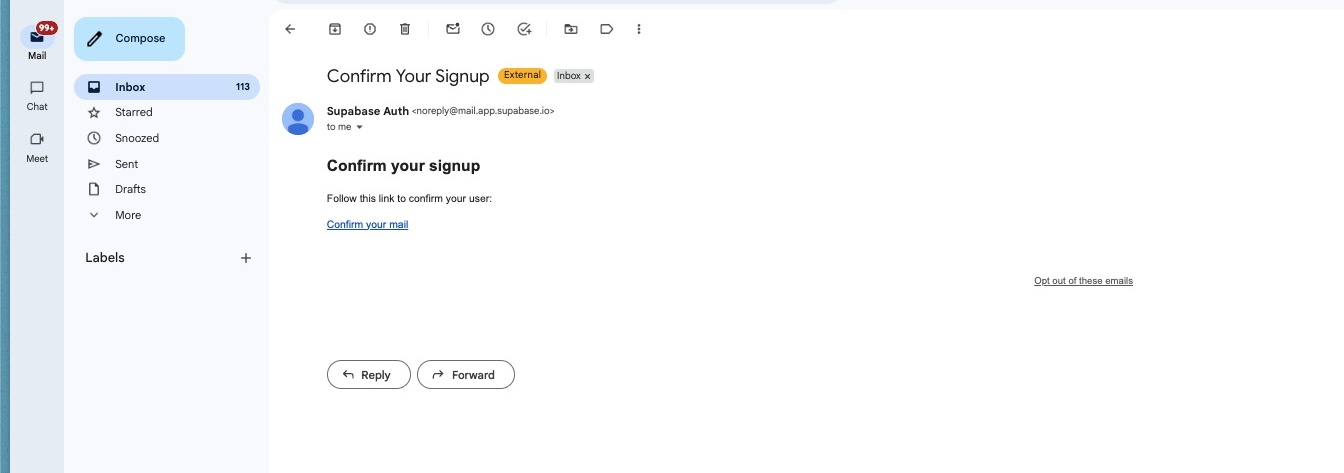
Tip: If you don't see the email, check your spam or junk folder. The email comes from "Supabase Auth" at [email protected].
Step 5: Start Using Zarna AI
Once you click the verification link in your email, your account will be confirmed and you'll be able to sign in to Zarna AI. You can now access the dashboard and start using the platform.
Your account is now fully set up! Head to the sign-in page and use your email and password to log in to your new Zarna AI account.
Tips for Success
- Use a work email: This ensures proper account verification and access to enterprise features.
- Choose the right firm: Select your firm from the dropdown or create a new one if yours isn't listed.
- Check for the success notification: After signing up, look for the blue notification in the top-right corner confirming your registration.
- Verify your email promptly: The verification link is sent immediately. Click it as soon as possible to activate your account.
Next Steps
Congratulations! Your account is now set up. Here's what to do next:
Need Help?
If you encounter any issues during the sign-up process, our support team is here to help.
Contact Support